Hub view
User guide
How to use this demonstration, page by page.
Demo Data Hub: quick guide
For field and program staff. No technical background needed.
Describes the pages without opening any record. Prints with every fold open.
Before anything else
Four facts hold on every page of this demonstration.
- Sample records, regenerated. Every record is generated sample data. The set is rebuilt from a fixed recipe, and each visit starts fresh.
- Source records are never edited. Nothing on screen writes back. Marks, day plans and plan names last for the session or travel in the page address, and a reload clears the marks.
- Every download passes the export check. A dialog states what a file holds before it leaves, and every row of every file is marked 'Demo data' and 'GENERATED_SAMPLE'.
- Maps and context layers are reference material. Basemap tiles and the context layers are real public geography, credited on each map. The marks drawn over them are generated.
First five minutes
One pass through any workspace, in five steps. Every workspace works the same way; only the words differ.
-
Open
Choose a workspace on the cover: Tortoise, Invasive Plants or Restoration. Each opens on its Action center.
-
Read
Read the headline, then the list. Every row names why it is listed; choose the reason chip for the full explanation.
-
Review
Choose a row's name to open its record beside the list. On a phone the record takes the screen, and Back to the list returns to the same row.
-
Plan
Tick rows to build a Day plan: numbered stops on the range, Shortest order, and Print the day sheet.
-
Check
Open Data & methods for the checks, the records and the methods behind every figure.
Tortoise · Action center Invasive Plants · Action center Restoration · Action center
Where to go
Every working page by the question it answers, read from the demo's route catalog as this page is drawn.
| Looking for… | Go to |
|---|---|
| Tortoise | |
| Choose a task. | Tortoise · Start here |
| Plan the next field round. | Tortoise · Action center |
| The roster, and one animal's record beside it. | Tortoise · Animals |
| Movement, space use, and monitoring effort. | Tortoise · Movement |
| Exam coverage and clinical signs. | Tortoise · Health |
| Checks, records, reports, methods, and analyses. | Tortoise · Data & methods |
| Invasive Plants | |
| Choose a task. | Invasive Plants · Start here |
| Which patches are overdue for a recheck after a clearance, past the review ceiling, or never visited. | Invasive Plants · Action center |
| Every patch on the register, and on an explicit pick, one patch's visits, methods and recorded size. | Invasive Plants · Patches |
| Where the patches are, drawn from their own recorded rings rather than from a centroid. | Invasive Plants · Map |
| After a patch was recorded fully cleared, what its next visit recorded, with other views of the recorded work beside it. | Invasive Plants · Outcomes |
| Checks, records, reports, methods, and analyses. | Invasive Plants · Data & methods |
| Restoration | |
| Choose a task. | Restoration · Start here |
| Which planting sites need a visit, and for which reason, under the measured schedule or the demo monitoring plan. | Restoration · Action center |
| The public plant register, and one plant's reads from planting to its latest record, with ineligible records withheld. | Restoration · Plants |
| Where the planting sites are, and which of them the monitoring list is asking for. | Restoration · Map |
| Public plant records compared by cohort at equal plant age. | Restoration · Survival |
| Checks, records, reports, methods, and analyses. | Restoration · Data & methods |
| Across the demonstration | |
| Data sources and methods for this example. | About |
| How to use this demonstration, page by page. | User guide (this page) |
| Not in this demonstration | |
| Edit or correct a record | The hub cannot: it shows records as generated. Data checks points to records worth a second look. |
| Keep a plan or a mark for later | Marks clear on reload. A day plan travels only in the page address; Copy link to this plan keeps it. |
| Real survey results | None here: every record is generated sample data. |
| Sign in, or manage who sees what | No sign in on this build. Roles are declared in configuration, not enforced. |
Tortoise
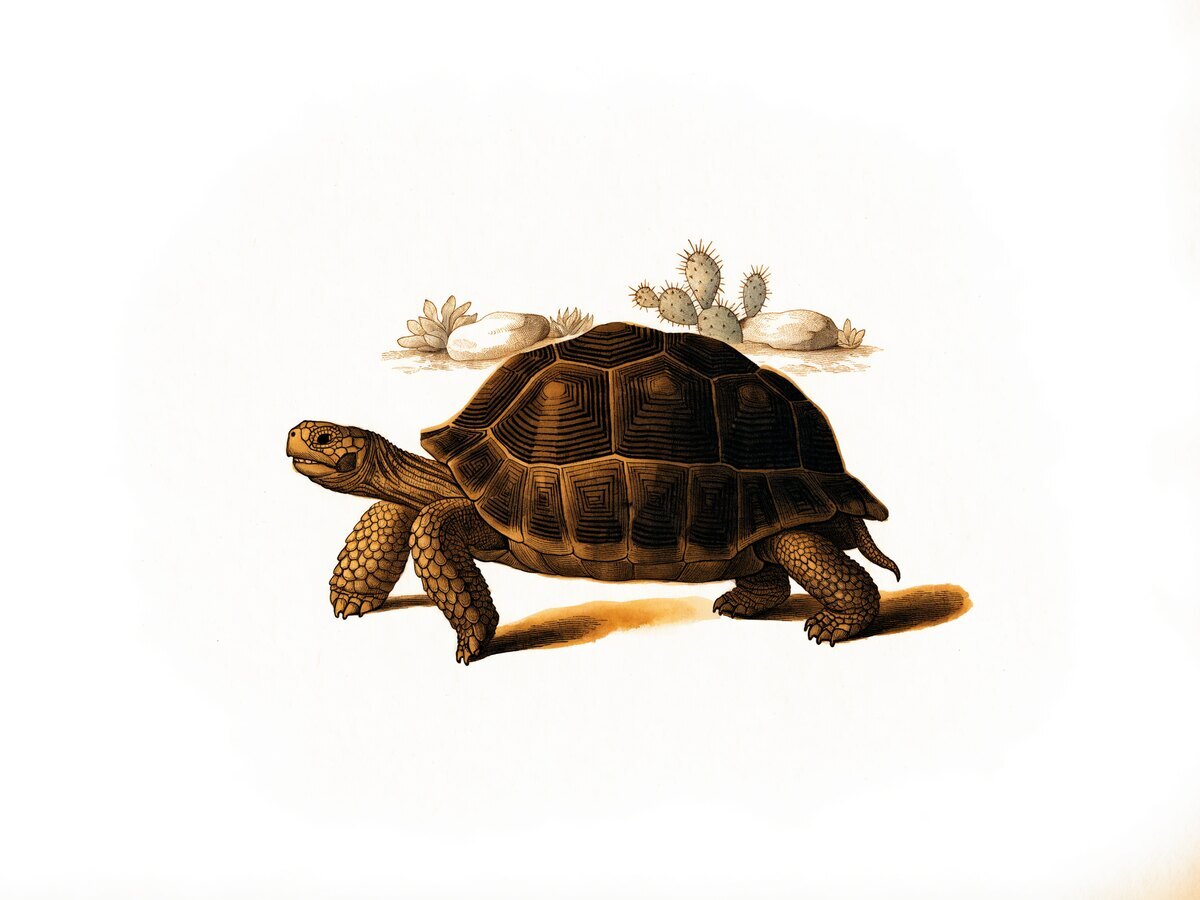
Radio-tracked and survey tortoises: where each was last located, what its exams recorded, and what the next field round should cover.
Pages, in order
| Step | Page | Use it for |
|---|---|---|
| Orient | Start here | A short menu of tasks. It reads no records, so it opens at once. |
| Decide | Action center | The tracked animals that need something on the next field round, each with the reason it is listed. |
| Review | Animals | The roster, and one animal's record: a summary, its encounter history and its attachment records. |
| Locate | Movement | Where each tracked animal was recorded, as positions and outlines, with playback fix by fix. |
| Read | Health | Exam coverage and clinical signs by year, and one tortoise's signs exam by exam. |
| Check | Data & methods | The record checks, the records themselves, reports, methods and the analysis library. |
Walk-throughs
Plan the next field round
- Open Action center. The list starts on Needs attention; the choices under Show narrow it to one reason, such as Lost contact or Assessment.
- Choose a row's reason chip to read why the animal is listed and how long it has been.
- Tick the box beside an animal to add it to the Day plan. The plan card beside the list numbers each stop on Stops on the range.
- Choose Shortest order to sort the stops, then Print the day sheet for a sheet with a blank Field notes column, or Copy link to this plan to pass the plan on.
Mark an item as checked
- Open Before the visit on the Action center: one line per animal and open item.
- Choose Mark as checked on a line, pick a reason, and confirm. The line is struck through and the animal's chip turns grey: Checked.
- The mark lasts for this session only. The generated record does not change, and a reload clears the mark; Undo this mark reverses it sooner.
Follow one animal
- On Animals, choose an animal's name to open its record beside the roster. Previous and Next walk the list; Record view switches between Summary, Encounter history and Attachments.
- On Movement, choose the animal under Tortoise, then Fit to selection. Open Playback to step through its recorded fixes one at a time.
- On Health, choose a tortoise and Show its exams to see its clinical signs, one column per exam.
How to read the movement map
Each mark is one recorded position. Positions are never joined into a path: a line between two fixes would claim a route the animal was never recorded taking.
An outline encloses an animal's recorded positions. It describes where the animal was recorded, not everywhere it went.
How to read the health figures
A sign is counted only on an exam that assessed it. A blank means the sign was not assessed, and an unassessed sign says nothing about health.
Condition index is drawn for each program arm on its own, never pooled across arms.
Invasive Plants
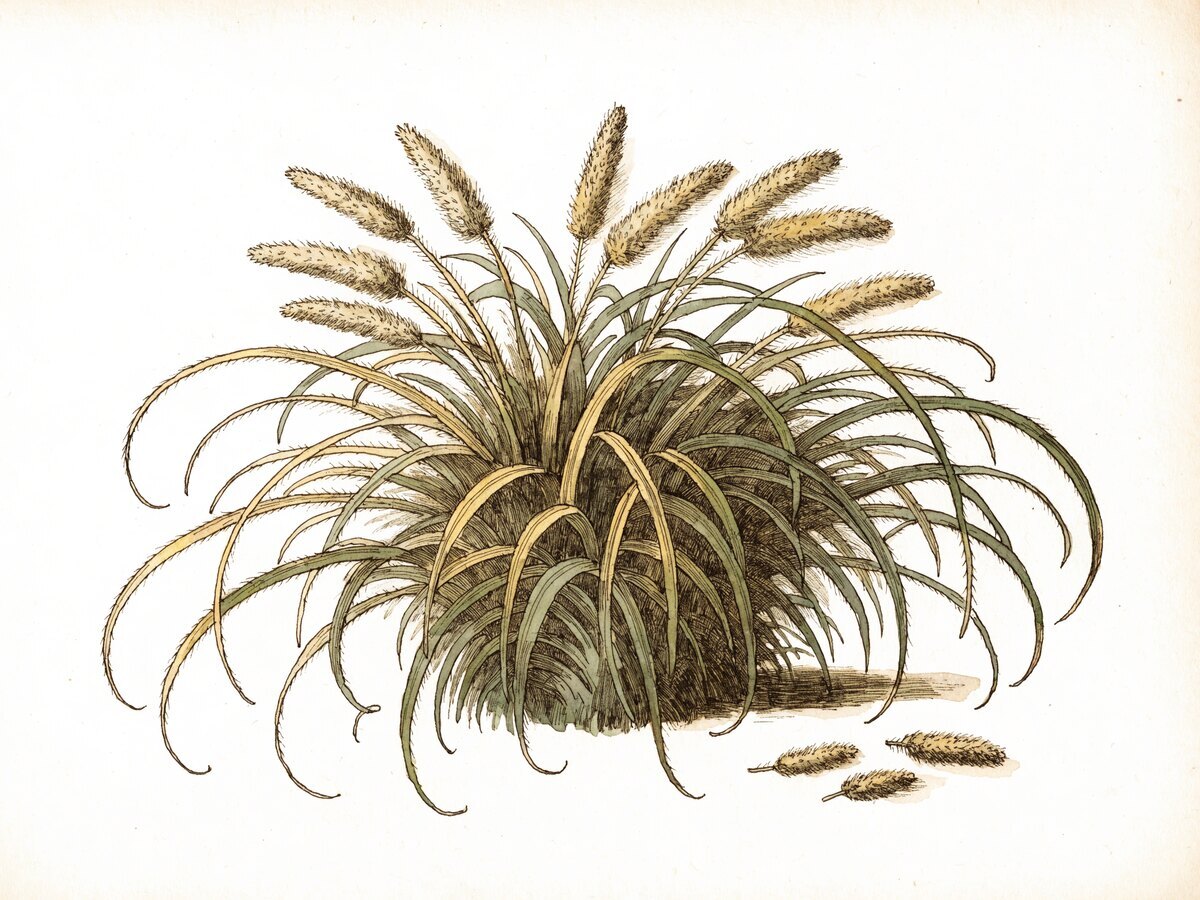
Mapped patches of invasive plants: which need a return visit, where they are, and what a visit recorded after a clearance.
Pages, in order
| Step | Page | Use it for |
|---|---|---|
| Orient | Start here | A short menu of tasks. It reads no records, so it opens at once. |
| Decide | Action center | Patches overdue for a recheck, past the review ceiling or never visited, each with its reason. |
| Review | Patches | The full patch register, and one patch's visits, methods, recorded size and attachment records. |
| Locate | Map | Every patch on the range, drawn from its own recorded boundary, or as a point where none was recorded. |
| Read | Outcomes | What the next visit recorded after a full clearance, plus four other views of the work. |
| Check | Data & methods | The record checks, the records themselves, reports, methods and the analysis library. |
Walk-throughs
Work the recheck list
- Open Action center. The three counts above the list, Recheck overdue, Past the ceiling and Never visited, each show only their rows.
- Open Filters to narrow by plant, area or record type; its summary names what is set.
- Choose a patch's name to open its record beside the list, with Show on map, Open full record, Copy link to this record and Print this record.
- Tick patches to build a Day plan, then Map these stops to see them numbered on the Map.
Find a patch on the range
- On Map, each mark is drawn from the patch's own recorded boundary; a record with no boundary is drawn as a point.
- Filters and key under the map narrows what is drawn; Reset view returns to the whole range; Hide key and Show key fold the legend away and back.
- Choose a patch on the map to read its popup and open its record.
Read one patch's history
- On Patches, choose a patch's name to open its record beside the register.
- Past visits and nearby records lists each visit and any other record mapped close by.
- Attachments are listed as records only: image files are not bundled with this demonstration.
How to read the outcomes
Every share on Outcomes carries its denominator: the clearances that had a later visit, not every clearance.
Patches with no later visit are stated beside the figure and counted as neither regrowth nor success. Each share is drawn as a recorded range, not a single point.
Restoration
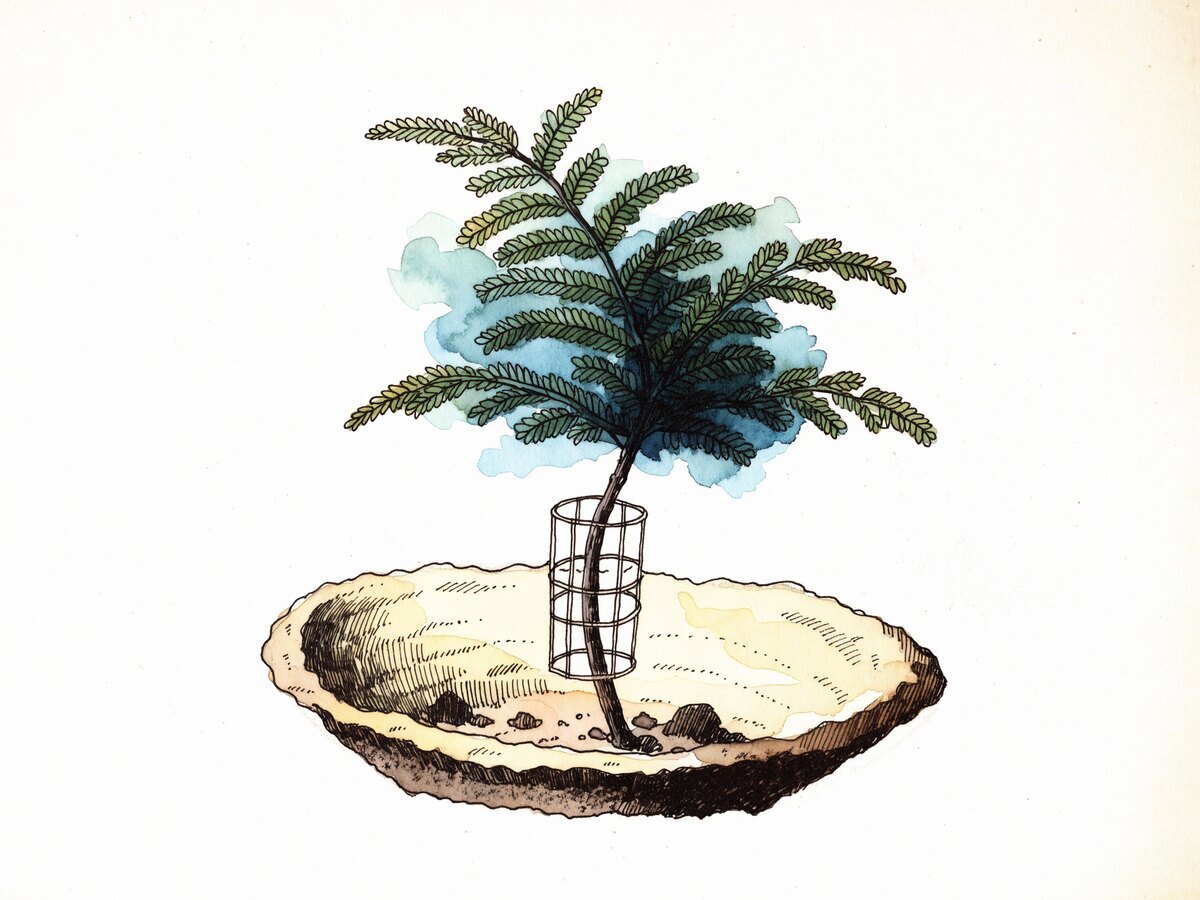
Planting sites and the plants set out in them: which sites are due a read, where they are, and how each cohort has fared.
Pages, in order
| Step | Page | Use it for |
|---|---|---|
| Orient | Start here | A short menu of tasks. It reads no records, so it opens at once. |
| Decide | Action center | Planting sites with a reason for a visit, under the measured schedule or the demo monitoring plan. |
| Review | Plants | The plant register, and one plant's reads from planting to its latest record. |
| Locate | Map | Where the planting sites are, and which of them the monitoring list is asking for. |
| Read | Survival | Follow-up cohort by cohort at equal plant age, drawn as bounds rather than one pooled number. |
| Check | Data & methods | The record checks, the records themselves, reports, methods and the analysis library. |
Walk-throughs
Choose the visit schedule
- On Action center, two schedules decide which sites are due: Measured from these records and Demo monitoring plan.
- The list, its counts and the day plan follow the schedule chosen, and the choice travels in the page address.
- Reason chips such as Never visited and Dead, then alive explain each site; choose one to read it in full.
Plan site visits
- Tick sites on the Action center list to build a Day plan.
- Open Ready to go? on the plan card to see how many stops are mapped and on the current list.
- Print the day sheet prints the stops in visit order with a blank Field notes column; Map these stops opens them on the Map.
Look up one plant
- On Plants, narrow the register by Planting site, then choose a plant.
- Its reads run from planting to the Latest record, with the plant's status at each read.
- Copy link to this record carries the same plant to a colleague on the same generated dataset.
How to read survival
Survival is shown cohort by cohort at equal plant age, as a range between two bounds: plants with no status counted dead, and the same plants counted alive.
Cohorts are never pooled into one headline number, because they were planted in different years and followed for different lengths of time.
Data checks
Every workspace's Data & methods page opens on Data checks. Each check is one question about the generated records, such as whether two measurements of one animal should be reconciled.
- A check states what it found and leads to the exact records it counted. A check that finds nothing says so.
- Nothing on the page corrects a record: a check points at records worth a second look, and the correction belongs in the source system.
- Records, Reports, Methods and Analysis library sit beside the checks as the page's other choices. An analysis shows what was counted, what was left out and the calculation behind it.
Tortoise · Data & methods Invasive Plants · Data & methods Restoration · Data & methods
Downloads and printing
Downloads and print buttons sit in two trays below each list, after its page buttons.
A download, step by step
-
Choose
Choose a download under the list, such as Download this view or Download full list.
-
Read
The export check opens first. It names the file, the number of rows and the columns, and says in one sentence what the file holds.
-
Save
Choose Download to save the file, or Cancel to leave without one.
-
Open
Every row of the file says 'Demo data' and 'GENERATED_SAMPLE'. Records are named by their public names only, and no file carries a coordinate.
Printing
- Print page prints the list as it stands on screen; Print filtered list prints every row that passes the filters.
- Print the field sheet and Print the day sheet print a sheet to carry into the field; Print this record prints the open record.
- Every printed sheet carries the demonstration mark. Print this guide prints this page with every fold open.
If a page misbehaves
Each condition below has one plain response.
- The connection closed
- A card says so and offers Reload. A fresh session starts on the same generated records; marks are gone, and a day plan in the page address comes back.
- Map did not load
- Map tiles come straight from the public U.S. Geological Survey services. When they do not answer, the marks, lists and tables still work; Reset view redraws and a reload tries again.
- Download refused
- The export check itself never turns a file away: what it describes is what arrives, as the list stood when the check opened. A download that cannot act, such as a list with no rows, is shown disabled beside the list. A file that did not arrive after Download means the browser blocked the save or the session had closed in between; reload and choose the download again.
- A number looks off
- Every count is computed from the loaded generated records. Open How this is counted or Behind this number under the figure, then Data checks for records flagged for a second look.
- A record link cannot be matched
- A shared link carries the generated dataset it was made on. When the records have been regenerated since, the page opens the full list with a notice instead of the record.
Contact
Desert Data Labs built this demonstration. Questions about it, or about the software behind it, go through the Desert Data Labs contact page.
Page names, their order and the questions in this guide are read from the demo's route catalog each time the page is drawn, so a renamed page is renamed here too.